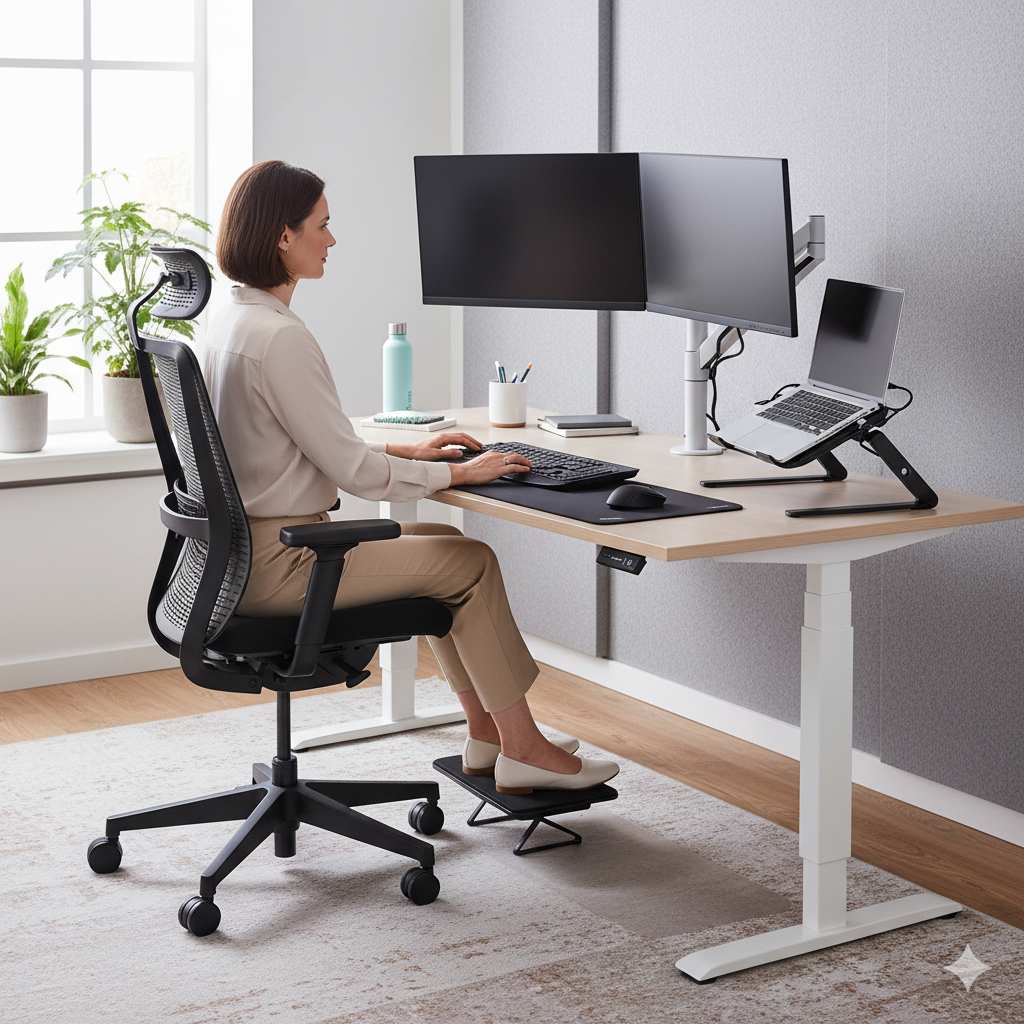
Did you know that the average office worker spends approximately 1,700 hours per year at their desk? That's a significant portion of your life spent in one position. If your workspace isn't optimized for your body, you could be setting yourself up for chronic pain, reduced productivity, and long-term health issues. The good news is that with evidence-based ergonomic adjustments, you can transform your workspace into a haven of comfort and efficiency.
The High Cost of Poor Ergonomics
Before we dive into solutions, let's understand the problem. Research from the Occupational Safety and Health Administration (OSHA) indicates that work-related musculoskeletal disorders account for over 30% of all worker injury and illness cases. These aren't just minor inconveniences—they can lead to chronic conditions that affect your quality of life long after you've left the office.
Common issues include:
- Neck and shoulder pain from monitors positioned too high or too low
- Back problems from improper chair support and sitting posture
- Carpal tunnel syndrome and other repetitive strain injuries from keyboard and mouse use
- Eye strain from improper lighting and screen positioning
- Reduced circulation from prolonged sitting without movement breaks
The financial impact is staggering too. According to the Bureau of Labor Statistics, employers spend over $15 billion annually on direct costs for musculoskeletal disorders. But beyond the numbers, it's about your wellbeing and ability to perform at your best.
Monitor Positioning: Your Window to Digital Work
Your monitor is your primary interface with digital work, and its positioning can make or break your comfort. The Human Factors and Ergonomics Society recommends positioning the top of your screen at or slightly below eye level. This allows you to view the middle of the screen with a slight downward gaze, which is the most natural position for your eyes and neck.
Here's how to achieve the perfect monitor setup:
- Position the monitor directly in front of you, about an arm's length away
- The top of the screen should be at or slightly below eye level
- Tilt the screen back about 10-20 degrees for optimal viewing
- Ensure the monitor is perpendicular to windows to minimize glare
- Adjust brightness and contrast to match the ambient lighting
- Consider using the 20-20-20 rule: every 20 minutes, look at something 20 feet away for 20 seconds
If you use a laptop as your primary computer, consider investing in a laptop stand and external keyboard and mouse. This allows you to position the screen at the correct height while maintaining proper typing posture.
The Chair: Your Throne of Productivity
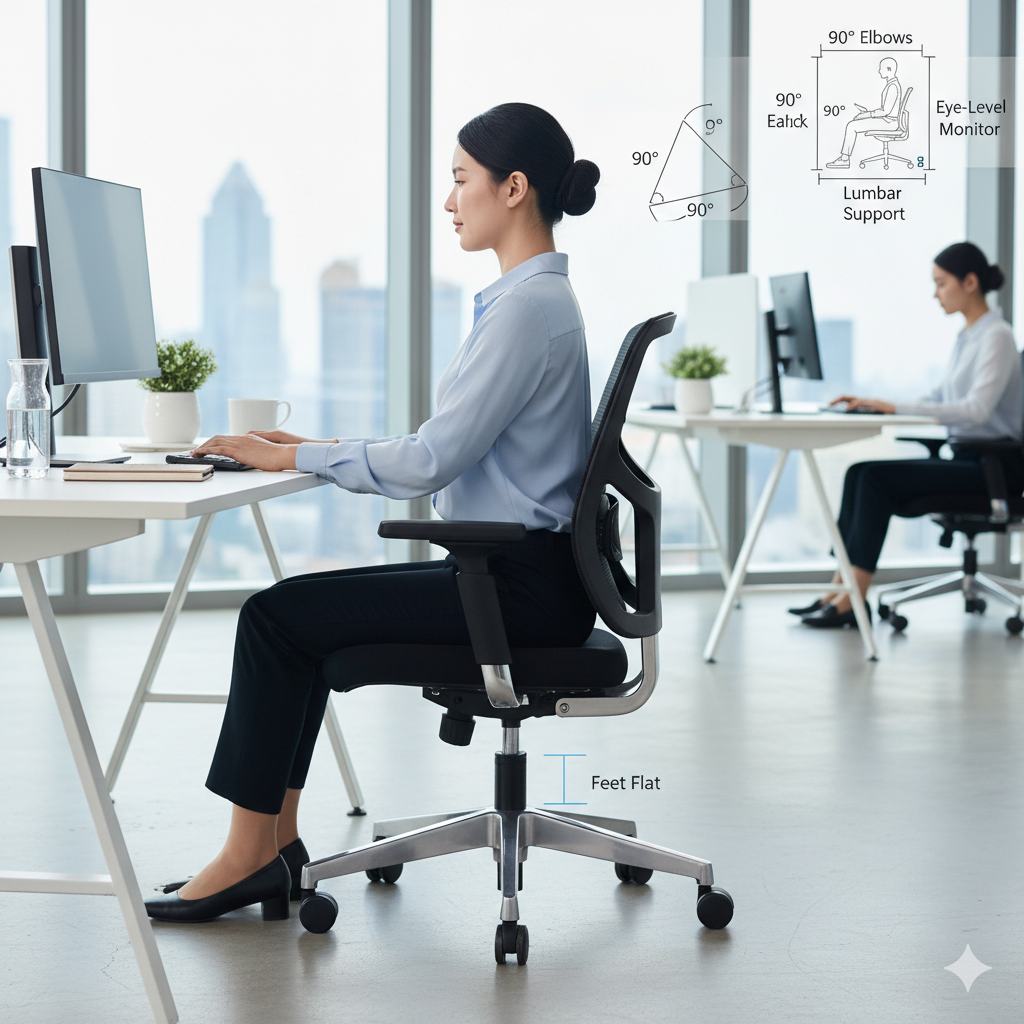
Your office chair is perhaps the most important piece of ergonomic equipment. A 2024 study published in the Journal of Occupational Rehabilitation found that proper chair adjustment reduced lower back pain in office workers by 47% over a six-month period.
Follow these steps to optimize your chair:
- Seat height: Adjust so your feet rest flat on the floor with knees at about a 90-degree angle
- Seat depth: Leave 2-4 inches between the back of your knees and the seat edge
- Backrest: Position to support the natural curve of your spine, particularly the lumbar region
- Armrests: Adjust so your elbows form a 90-120 degree angle when typing
- Seat pan tilt: Slight forward tilt can help maintain the natural spinal curve
Remember that even the best chair won't protect you from the dangers of prolonged sitting. The key is movement—changing positions frequently throughout the day.
Keyboard and Mouse Placement: Your Tools of Creation
Improper keyboard and mouse positioning is a primary contributor to repetitive strain injuries. The American Academy of Orthopaedic Surgeons recommends keeping your wrists in a neutral position—not bent up, down, or to either side.
Optimal keyboard and mouse setup includes:
- Position the keyboard directly in front of you with the mouse close by
- Keep your elbows close to your body at a 90-120 degree angle
- Maintain straight, neutral wrists—consider a wrist rest for support during pauses
- The keyboard should be at or slightly below elbow height
- Use a light touch when typing—no unnecessary force
- Consider ergonomic keyboards and mice if you experience discomfort
Research from the Cornell University Ergonomics Laboratory shows that proper input device positioning can reduce muscle strain in the shoulders, neck, and arms by up to 21%.
Movement Strategies: The Antidote to Prolonged Sitting
Perhaps the most important ergonomic principle is movement. A 2025 meta-analysis in the British Journal of Sports Medicine concluded that for every 30 minutes of sitting, 3-5 minutes of light activity can counteract most negative metabolic effects.
Effective movement strategies include:
- Take a 2-minute break every 30 minutes to stand and stretch
- Use a standing desk or adjustable workstation to alternate between sitting and standing
- Incorporate "deskercise" routines—simple stretches you can do at your desk
- Walk during phone calls or meetings when possible
- Use apps or timers to remind you to move regularly
- Consider an under-desk pedal exerciser for light activity while working
Remember that variety is key. The human body is designed for movement, not static positions, no matter how ergonomically perfect they may be.